
Overview
Truley Companion Notetaker automatically joins Microsoft Teams meetings to capture and organize meeting content. After installing Truley Companion, both existing and newly created Teams meetings will be detected by Notetaker. Notetaker will request to join meetings automatically based on your meeting and organization settings.
How Notetaker Works
Notetaker follows the process below when monitoring meetings.
- Notetaker will request to join the meeting 3 minutes before the meeting starts.
- If the request is approved, Notetaker will start recording the meeting.
- If the request is declined, Notetaker will leave the meeting and no recording will occur.
- Notetaker will leave the meeting 30 seconds after all participants exit.
⚠ Important
If Notetaker is not allowed to join the meeting, no meeting content will be captured.
Managing Notetaker for Individual Meetings
You can control whether Notetaker joins a meeting from the meeting page. A Notetaker toggle with a bot icon (circled in red) will appear on each meeting item. If the bot does not join the meeting for any reason, click the Notetaker button (circled in green) to trigger it to join the meeting.

Default Behavior
All newly created meetings are enabled by default, allowing Notetaker to request to join.
Manual Control
Users can enable or disable Notetaker for each meeting individually.
Shared Meeting Setting
The Notetaker toggle is shared by all participants of the meeting. If one participant turns off the toggle, all participants will see the same disabled status.
Organization-Level Settings
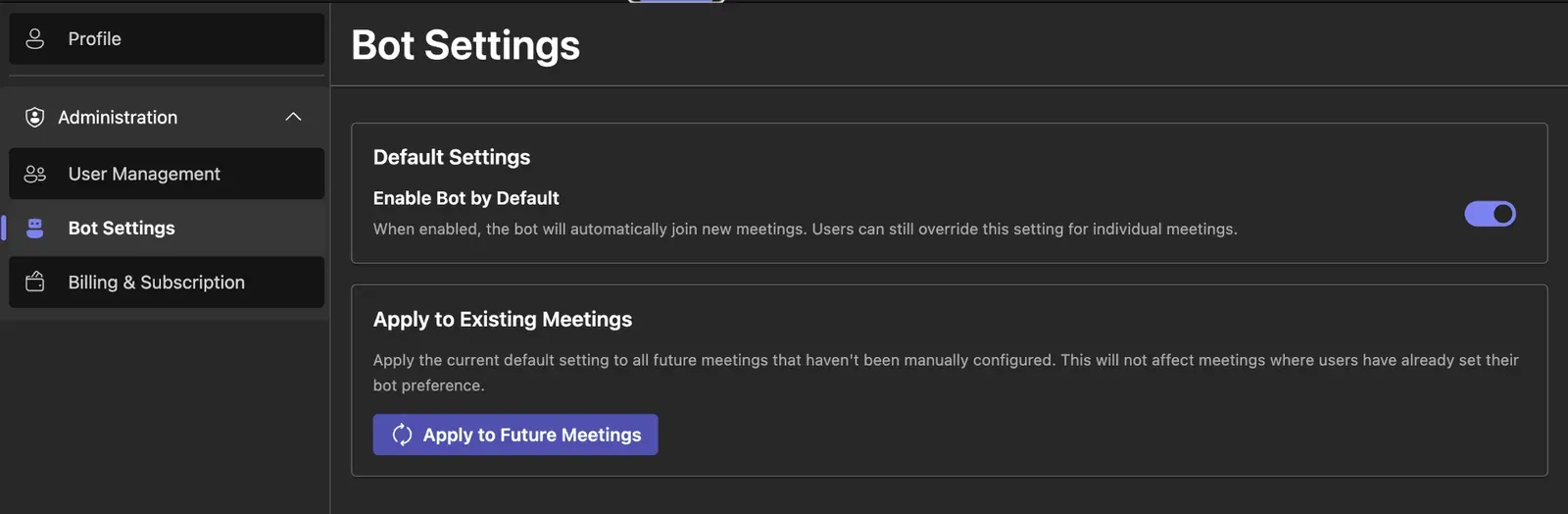
Organization administrators can control the default Notetaker behavior. Go to:
Settings → Bot Settings
Administrator permissions are required.
Default Setting for New Meetings
If the setting is enabled:
- All new meetings created in the organization will allow Notetaker to request to join.
If the setting is disabled:
- Notetaker will be disabled by default for all new meetings.
Apply Settings to Existing Meetings
After updating the default setting, click Apply to Future Meetings to apply the new setting to all existing meetings that have not yet started.
Important Notes
- ⚠ Uninstalling the Truley Companion app will NOT stop Notetaker.
- Notetaker operates at the meeting level, not the personal app level.
- To stop Notetaker from joining a meeting, go to the meeting page and disable the Notetaker toggle.
- ⚠ Organization-level settings can only be modified by administrators.